
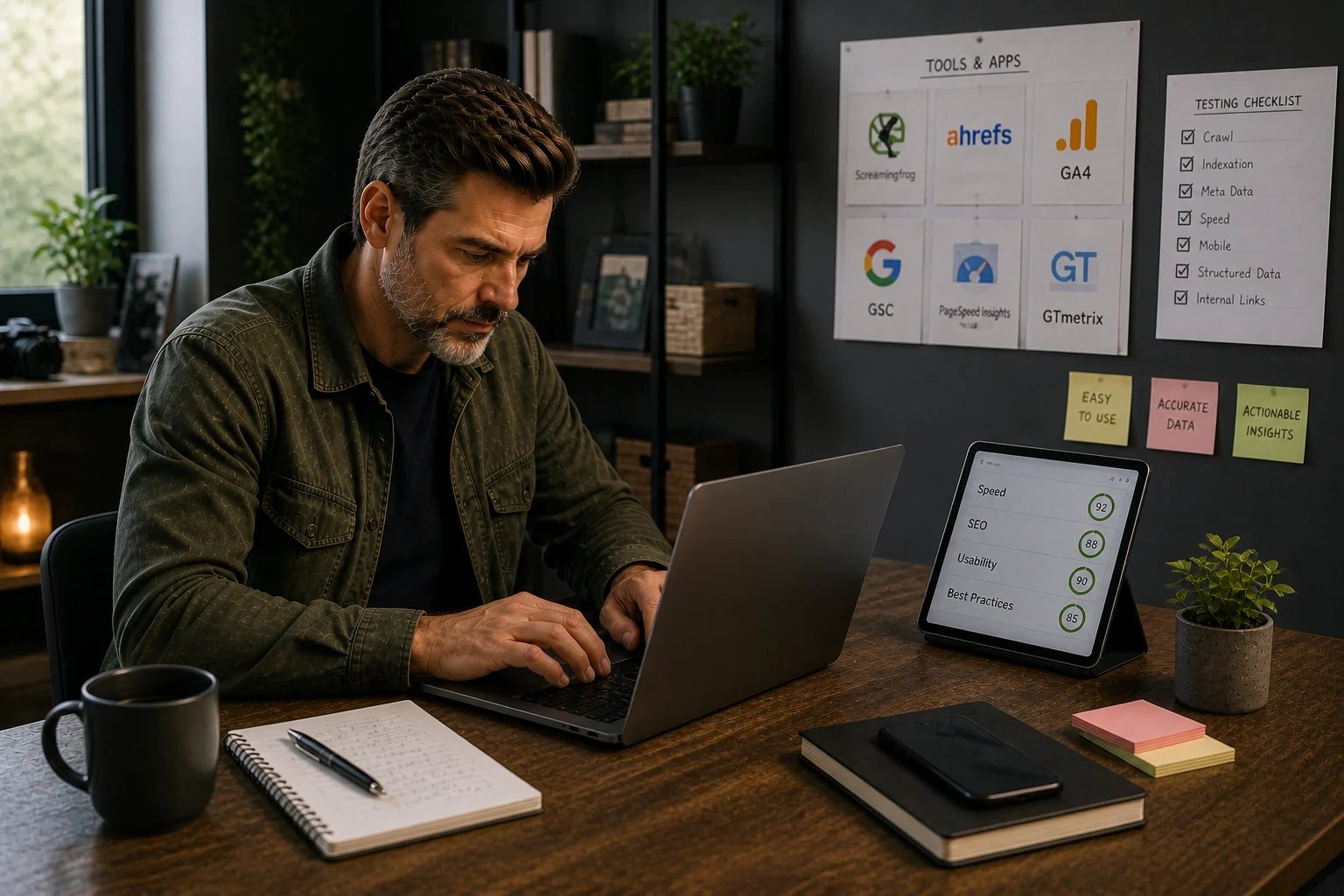
The short answer
Create a GA4 property and web data stream, install Shopify's Google and YouTube channel, and follow Google's Shopify Google tag instructions to connect them.
What to do first
Check existing theme tags, apps and pixels first, because Google warns that duplicate tags can duplicate measurement.
Create a Google Analytics 4 property and web data stream, then connect the property through Shopify’s Google & YouTube channel. Check existing measurement before making changes so you can investigate duplicate tags.
Create the property and stream
Shopify’s GA4 setup instructions say you need a Google account, an Analytics account, a GA4 property and a web data stream. Create or use the appropriate property and note its tag ID. Make sure the Google account you connect has access to the intended property.
Connect Shopify
- Install the Google & YouTube sales channel if it is not already installed.
- Follow Google’s Shopify Google tag setup instructions, which Shopify links to, to connect your property.
- Check the connected property afterwards.
Google recommends connecting the web stream in its Shopify Google tag instructions. It also documents a manual tag option in the app for cases where the recommended connection cannot be used. Shopify says a Merchant Center connection is not required to complete GA4 tag setup.
Check before relying on reports
Shopify says certain ecommerce events are collected automatically after setup, including examples such as product views, add to cart and purchase. Check the actual events and property in your account, and use Google’s tag troubleshooting tools if needed. Review any existing theme tags, apps or pixels with whoever manages them before removing or adding measurement. Google warns that duplicate tags can duplicate measurement.
Shopify also says Analytics cannot track events while the online store is in private mode. A successful connection alone does not prove that every event is recorded as intended.
For context, see the SEO reporting dashboard, migration analytics checks and Search Console performance guide.
Written from Shopify Help Center’s Setting up Google Analytics 4 and Google Analytics Help’s Shopify Google tag setup, last reviewed 19 November 2026. Confirm the property, tags, privacy settings and event data in your own account.
Quick answer
Tools should be chosen only after the job is clear. A good tool reveals a decision, removes repeat work or reduces migration and SEO risk.
What you will do
- Avoid app bloat.
- Match Shopify-native controls, image handling tools, research tools and WordPress bridge tools to the right job.
- Create a testing standard before recommending or installing tools.
What to check first
- Shopify native controls before apps.
- Research tools for audit and competitor processes.
- TinyIMG for image-heavy Shopify stores.
- Rank Math and Elementor only for WordPress-side migration context.
- App Bloat Scorecard for tool governance.
Work through it in this order
- Name the problem the tool must solve.
- Check whether Shopify or the current theme already handles it.
- Estimate how often the work repeats and who owns it.
- Test the output on one page type before changing the whole store.
- Record scripts, theme changes, data access, cost and removal risk.
- Keep the tool only if the result is measurable and maintainable.
Real-world notes
- Compare an app with Shopify and theme features, and decide who will maintain any overlap.
- A tool that adds JavaScript to every page should earn its place.
- The best commercial recommendation is the one that solves the reader’s constraint, not the one with the loudest affiliate programme.
Final checks
- Problem named.
- Native alternative checked.
- Test page chosen.
- Output verified.
- Performance impact reviewed.
- Owner assigned.
- Removal risk understood.
Watch-outs
- If the store has a custom theme, test app output on staging before installing on live.
- If image handling is the real bottleneck, use an image tool rather than a broad SEO plugin.
- If keyword data is needed, use SEO software; do not expect a Shopify app to replace research.
Use the App Bloat Scorecard before installing or recommending another app.
Field questions
Why is GA4 not tracking my new store?
Shopify says Analytics cannot track events while the store is in private mode. Check that first.
Do I need Merchant Center for GA4?
Shopify says a Merchant Center connection is not required to complete GA4 tag setup.