
The short answer
Use Search Console's URL Inspection tool. It shows what Google has recorded for the page and can run a separate live test. A passing live test does not mean the page is already indexed.
What to do first
Select the property, paste the full live URL, read the indexed status, then use Test live URL if the page has changed since the recorded crawl.
This guide explains how to use Search Console URL Inspection to check a specific Shopify page.
Inspect the exact address
- Open Search Console and select the property that contains the page.
- Copy the complete live URL from your Shopify storefront, including the correct domain and path.
- Paste it into the inspection bar and open the result.
- Read the indexed status and the details provided for crawling and indexing.
The indexed report describes Google’s recorded information, not necessarily the page as it exists this minute. If a page has changed since the recorded crawl, select Test live URL to check its current accessibility and potential indexability. Google notes that not every issue can be tested live.
Read the result carefully
A page can be reachable but carry a noindex instruction, while a password or crawl restriction can affect access; check the reported setting before changing it. See how to edit Shopify robots.txt and how to noindex a Shopify page for the distinctions.
If the live test succeeds, the tool may offer a rendered screenshot under View tested page. Compare it with the storefront to see whether important content appears. A screenshot is not available for every test result.
After a fix
Test the live URL again. You can request indexing for an eligible URL, but Google does not guarantee that a request will lead to indexing. Check the indexed report later for the recorded result rather than treating the request as proof of inclusion.
For a broader diagnosis, see why Shopify pages are not indexed and how to submit a Shopify sitemap.
Sources: Google URL Inspection documentation and Google’s page availability guidance.
Written from Google Search Console URL Inspection and page availability documentation, last reviewed 19 November 2026. Confirm the property, URL and test results in your own account.
Quick answer
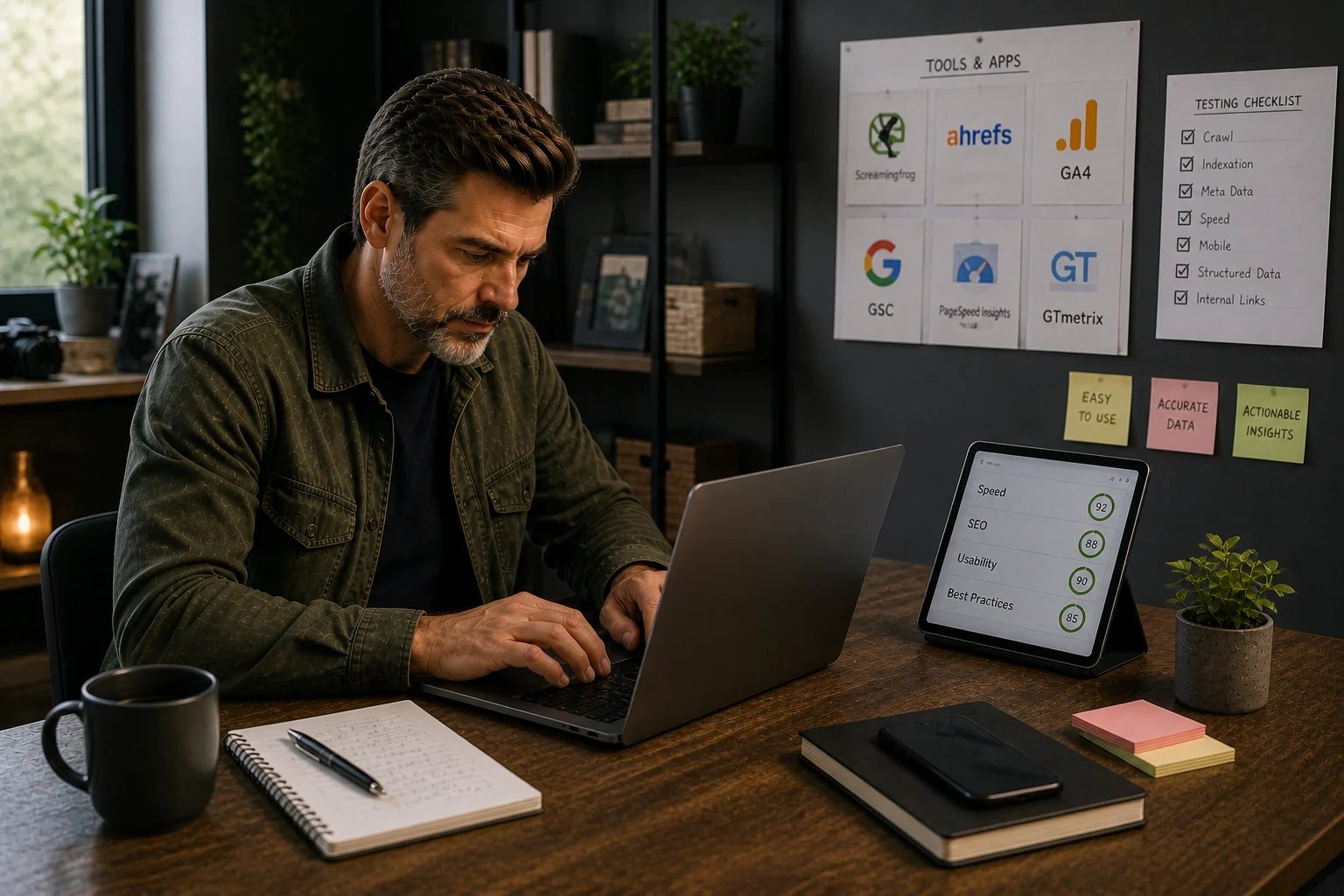
Tools should be chosen only after the job is clear. A good tool reveals a decision, removes repeat work or reduces migration and SEO risk.
What you will do
- Avoid app bloat.
- Match Shopify-native controls, image handling tools, research tools and WordPress bridge tools to the right job.
- Create a testing standard before recommending or installing tools.
What to check first
- Shopify native controls before apps.
- Research tools for audit and competitor processes.
- TinyIMG for image-heavy Shopify stores.
- Rank Math and Elementor only for WordPress-side migration context.
- App Bloat Scorecard for tool governance.
Work through it in this order
- Name the problem the tool must solve.
- Check whether Shopify or the current theme already handles it.
- Estimate how often the work repeats and who owns it.
- Test the output on one page type before changing the whole store.
- Record scripts, theme changes, data access, cost and removal risk.
- Keep the tool only if the result is measurable and maintainable.
Real-world notes
- Compare an app with Shopify and theme features, and decide who will maintain any overlap.
- A tool that adds JavaScript to every page should earn its place.
- The best commercial recommendation is the one that solves the reader’s constraint, not the one with the loudest affiliate programme.
Final checks
- Problem named.
- Native alternative checked.
- Test page chosen.
- Output verified.
- Performance impact reviewed.
- Owner assigned.
- Removal risk understood.
Watch-outs
- If the store has a custom theme, test app output on staging before installing on live.
- If image handling is the real bottleneck, use an image tool rather than a broad SEO plugin.
- If keyword data is needed, use SEO software; do not expect a Shopify app to replace research.
Use the App Bloat Scorecard before installing or recommending another app.
Field questions
What is the difference between the indexed result and the live test?
The indexed result is what Google recorded at its last crawl. The live test checks the page's current accessibility and potential indexability.
Does requesting indexing guarantee the page will be indexed?
No. Google does not guarantee that a request leads to indexing.